
Coaching – GrowthTrack Copy
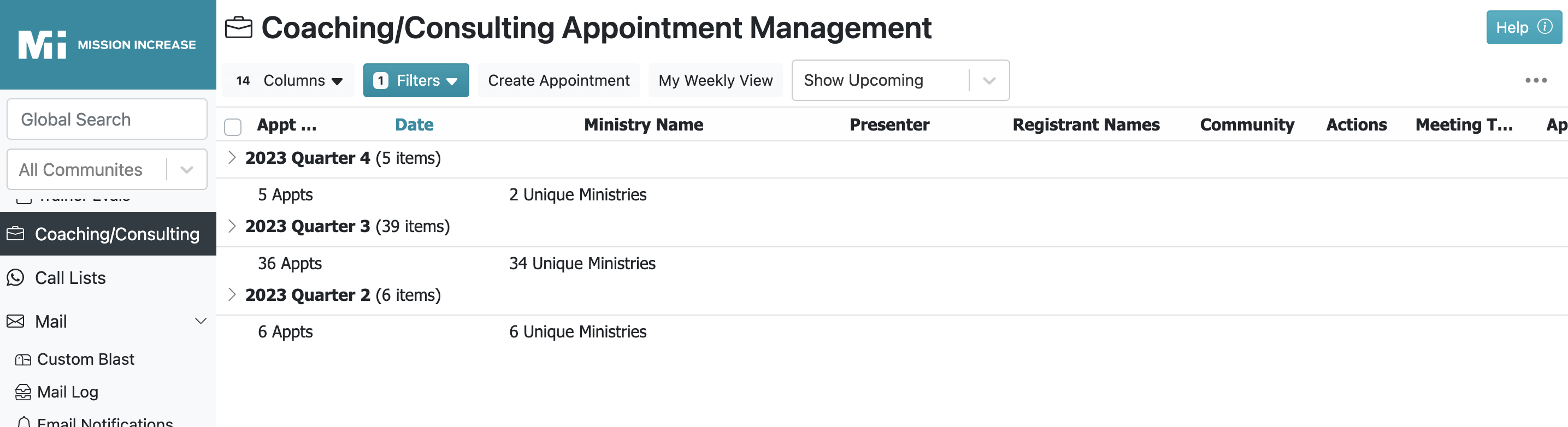
An Introduction to Coaching in GrowthTrack
Expected lesson duration: 30 mins
Read, take notes, and prepare to discuss with your GrowthTrack Trainer
Coaching Calendar Process Guide
To take advantage of this automated approach, Begin in Outlook:
1. AD begins to create an appointment – first, select the Categorize feature in the menu bar. Create two NEW categories (or rename a category). You must name them EXACTLY as below to communicate properly with MI Admin; choose any color.
If you already have the “Consulting Available” category, do not create this again.
Consulting Available
In-Person Only
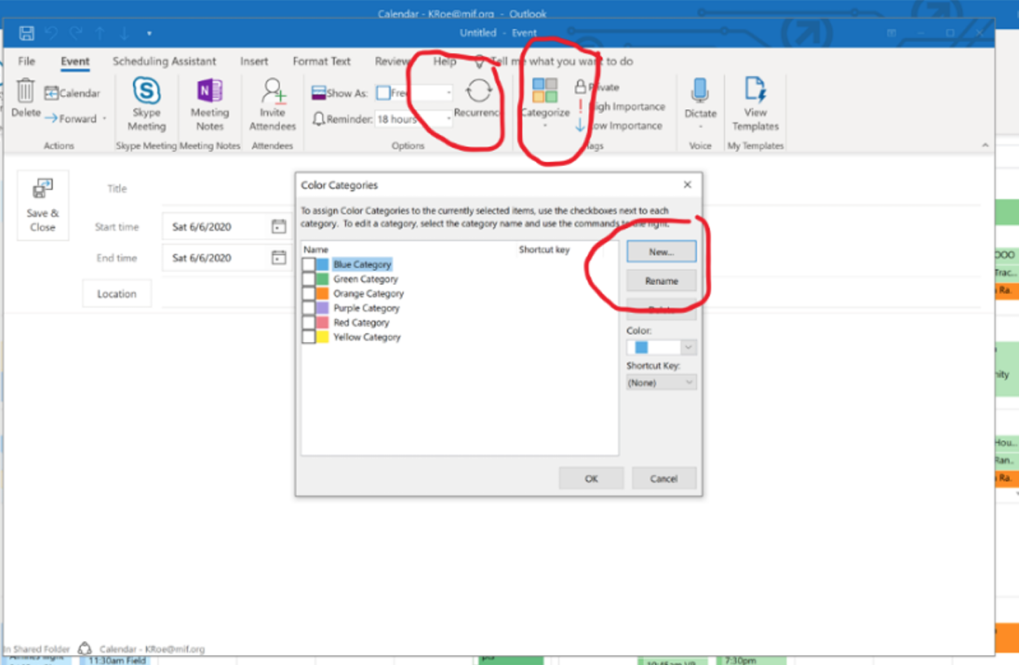
2. Each calendar appointment is created separately in Outlook, with the option to repeat regularly using the Recurrence feature.
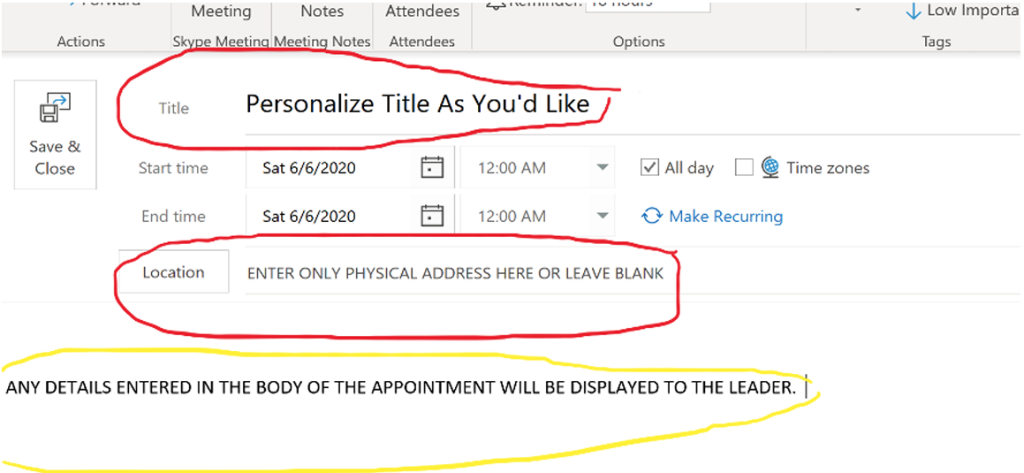
3. When creating ALL appointments you MUST select the Consulting Available box.
Select the In-Person Only box ALSO if the appointment is in-person only (does not apply if appointment is Remote Only or Either/Or type – descriptions below)
Additional Important Reminders:
- The TITLE you enter in the Outlook appointment Title field will display as the title leaders see in your Admin calendar and in subsequent emails. Personalize as you like.
- Enter a physical location/address only in LOCATION field. Leave Location empty if not meeting in a physical location. Do NOT enter Zoom links in this field (will interfere with code).
- Any details entered into the body of the appointment at the time it is initially created will be visible to the leader.
- Remember, you have the option to create 30 min appointments or longer.
Best Practice for Entering Group and Individual Coaching
There are best practices when managing Coaching. Group coaching (with more than one org) is entered as a GROUP LEARNING event. And individual appointments (with one org) are entered in COACHING/CONSULTING Appointment Management.
Group Coaching
WHAT: An AD coaches (or consults) with more than one organization, thus multiple leaders.
May be a pre-planned gathering of orgs to coach on a particular topic
May be entered after the coaching
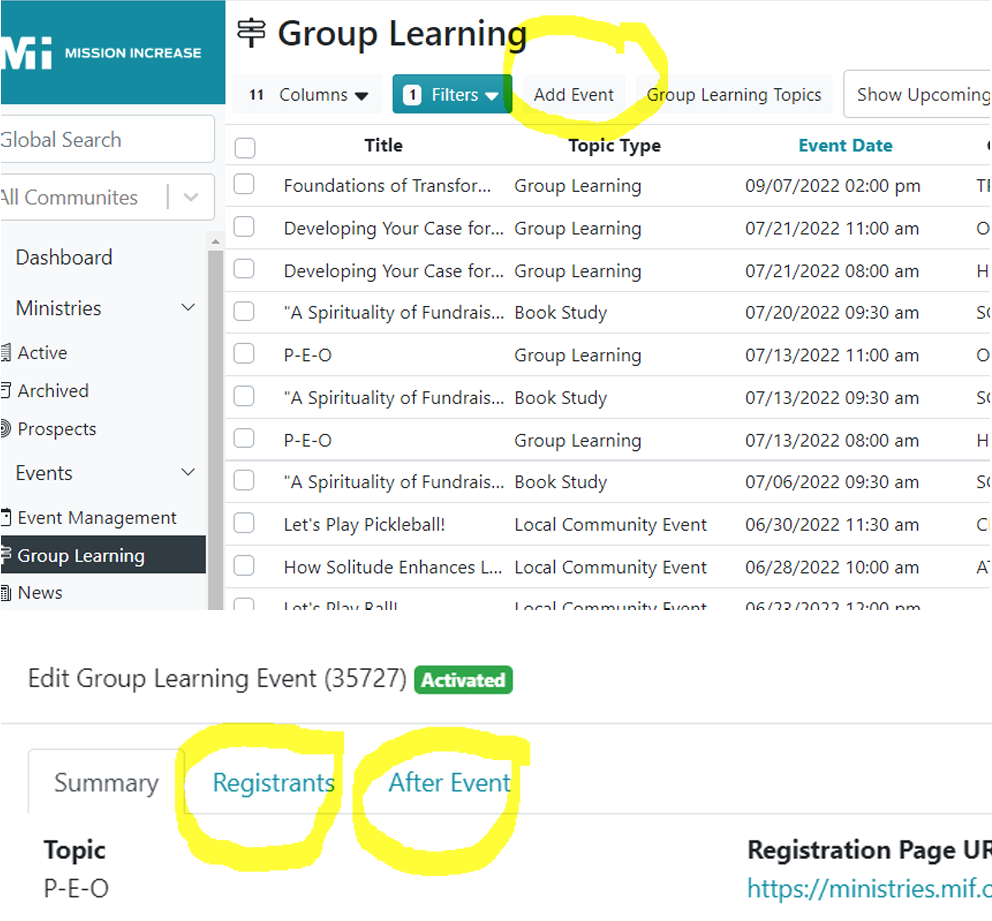
HOW: Create an event in GROUP LEARNING as “group learning” type (Admin>left Nav Bar)
When created ahead of time, leaders can register
May also be created after the group coaching as a means of tracking
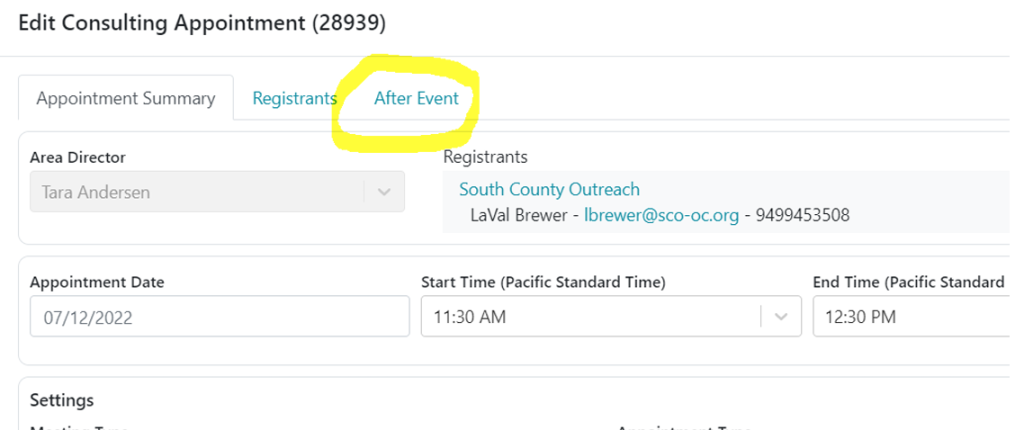
Note images below. Once activated, Registrants and After Event tabs display, to manage and track.
Individual Coaching
WHAT: An AD coaches (or consults) with one organization, may be one or more leaders
May be pre-planned and scheduled.
May be entered after the coaching appointment.
HOW: Create an appointment in COACHING/CONSULTING Appointment Management (Admin>left Nav Bar)
Can be created ahead of time or after the appointment
Can be created manually by AD or automatically scheduled by leader through AD’s coaching calendar
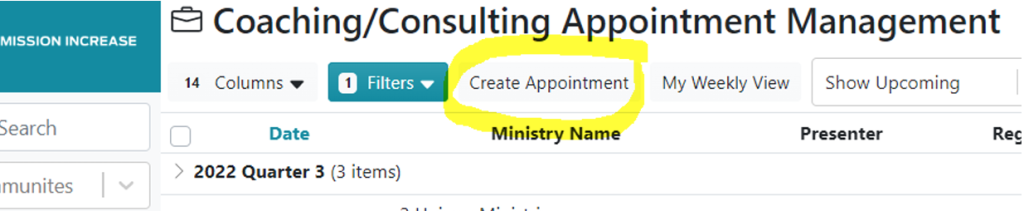
Close out appointment in ‘After Events.’
Watch these How-To Videos
Click the icon in the lower right of the video to make full screen.
- Teaching account: leaders can attend trainings, such as quarterly workshops, quarterly webinars, and forums.
- A teaching account does not require updates and is always OK status.*
- Coaching account: leaders can attend trainings plus schedule one coaching appointment per quarter with his/her Area Director.
- Coaching accounts require annual update, thus the status can be OK*, GRC (60-day grace period between okay and incomplete), INC (incomplete), and SUB (submitted for AD review).
*Access to MI services are dependent on maintaining an OK status.
Click the icon in the lower right of the video to make full screen.
Assignment: Create Test Appointments
Approx. 15 mins
Try two additional TEST appointments, ensure they display correctly.
Report to Brenda via Teams Chat your success, share any issues, or ask questions.
Need Help?
Reach out to Tanya by clicking the purple button to start an email with her.